
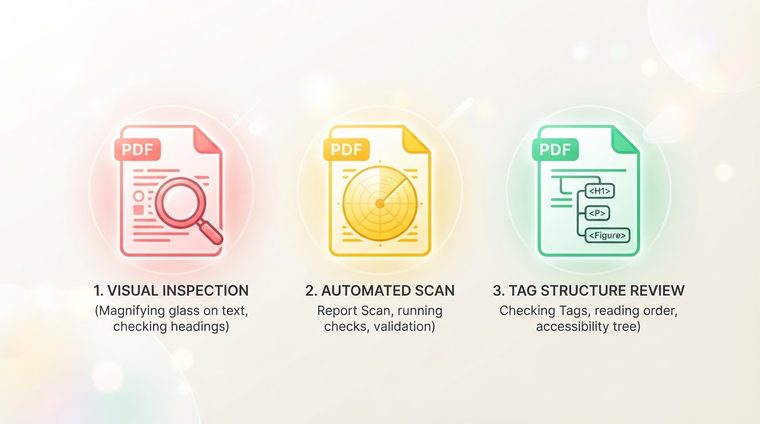
There's a big difference between "the document looks fine" and "the document meets the accessibility standard." A visual check — opening the file and glancing at it — catches almost none of the problems screen reader users run into. Before publishing a new document, five quick checks can save a lot of headaches down the line — for you and for whoever reads the document.
In short — what this guide covers
The five quick checks
This is essentially a summary list of everything we've covered in detail in the magazine's other guides — gathered here in one place, as a quick checklist before every publication:
How to actually perform each check
- Tag order: open the Tags panel in Acrobat and check that the order matches the logical reading order.
- Alt text: go through every meaningful image and make sure it has a purposeful description, not just a file name.
- Heading hierarchy: check in the Navigation Pane (in Word, before exporting) that headings don't skip levels.
- Contrast: use a tool like the WebAIM Contrast Checker to confirm the main text-background combinations meet at least 4.5:1.
- Language and reading order: make sure the language is set correctly in the document properties.
When an automated tool is enough, and when it isn't
The built-in accessibility check in Acrobat (Tools ▸ Accessibility ▸ Full Check) plays an important role — it quickly catches clear structural problems: missing tags, undefined language, tables without headers. But it also has a significant limitation: it can't judge quality — it won't know whether alt text describes an image well, or whether a "technically valid" tag order is actually logical in practice. An automated check is an excellent starting point, not a finish line.
💡 Practical tip
The combination that works best in practice: an automated check that catches clear structural problems and runs quickly across every document on your site at once, paired with a focused human review of the most critical documents (forms, legal documents, landing pages).
How to turn this into a regular habit
The most effective way to make sure this checklist actually gets checked, and isn't just "supposed to" be checked, is to make it part of the regular publishing process — not an extra step tacked on at the end, but a fixed stage before every document goes live. And for older documents already published without this check: one retroactive scan that maps them all at once is worthwhile, rather than discovering problems one by one as users run into them.
Want to check these five points across your entire site at once?
Our tool scans every PDF file on your site and checks it against all five criteria — within minutes, with no commitment.
Scan your site for free ←