
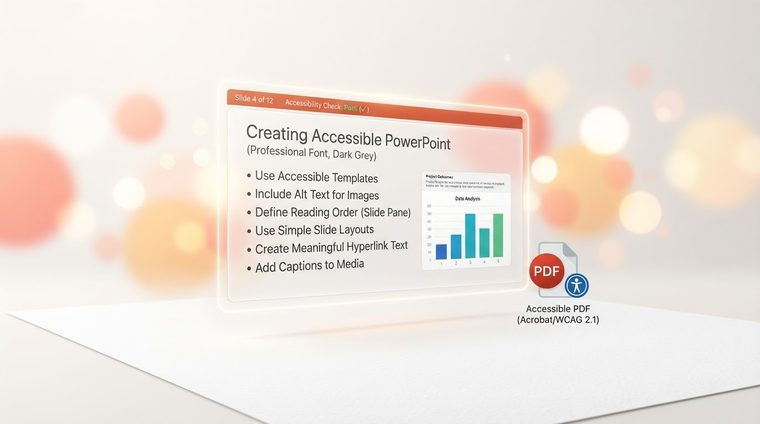
Presentations are among the least accessible documents in organizations — perhaps because they are seen as "temporary" or "internal." But a marketing presentation that becomes a PDF and gets published on a website, or a training deck sent to clients, is a document like any other and must meet the same accessibility rules. This article details the critical steps — before converting to PDF, not after.
In short — what this article covers
Correct reading order for every slide
PowerPoint determines reading order by the order in which elements were added to the slide, not by their visual position — so an element manually dragged to "the right place" may still be read in the wrong order by a screen reader. To check and fix this: Home ▸ Arrange ▸ Selection Pane — there you can see every object on the slide listed, and drag them to reorder them into the correct reading sequence.
Real text, not images of text
A common mistake: pasting a screenshot that contains text (like an Excel table, or a styled quote) instead of typing the text into a real text box. A screen reader cannot read text that is actually an image. If you must use such an image, add full alt text that describes all the information in the image — not just "data table."
Images, charts, and alt text
Every image, icon, or chart on a slide needs alt text: right-click the image ▸ Edit Alt Text. For complex charts and graphs, the description should include the main takeaway from the data, not just "pie chart" — for example: "Pie chart showing a 40% increase in sales in Q3 compared to the previous quarter."
💡 Practical tip
Purely decorative elements (background lines, meaningless design shapes) should be marked as "decorative" in the alt text window, so a screen reader skips them instead of "wasting" the user's attention on visual noise.
The final check before exporting to PDF
Before converting the presentation to PDF, run the built-in accessibility checker: Review ▸ Check Accessibility. The tool will flag slides with issues — missing slide titles, missing alt text, low contrast, and problematic reading order. Important: every slide needs a unique title (even if it's hidden visually), so that navigating between slides makes sense to a screen reader user. Only after every warning has been addressed should you export to PDF — and then check again that the tagging was preserved in the final file.
Already converted presentations to PDF and not sure they're accessible?
Our tool also scans PDF files that originated as presentations and shows exactly which slides need attention.
Scan your site for free ←After the scan, you can also make the documents that were identified accessible directly and for free through AccessiDoc.