
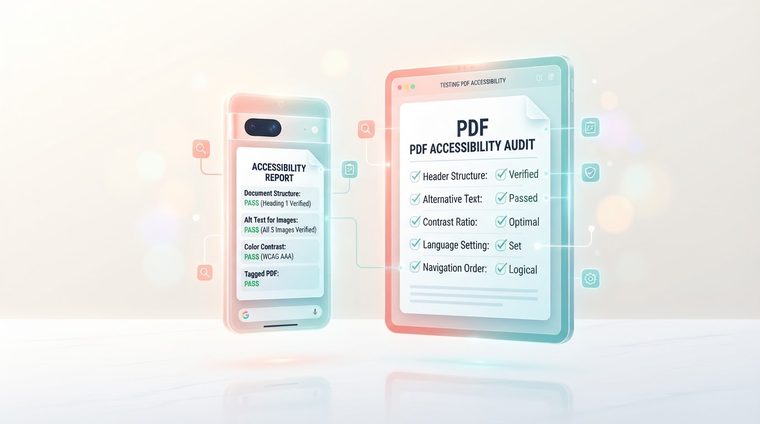
An accessible PDF document that’s been tested and approved on a desktop computer — is it necessarily still accessible when someone opens it on a phone, inside a reading app, or on a small tablet screen? The short answer is: not always. This article covers the main differences and how to test for them (and if you want to dig deeper into apps themselves, see our guide on mobile app accessibility).
In short — what this article covers
Why mobile is a different story
On a desktop computer, most users open a PDF in Adobe Acrobat or a browser with a dedicated plugin — environments that support accessibility tags well. On mobile, the document might open in dozens of different apps: the device’s built-in reading app, the Gmail app, a browser app, or a dedicated app built by the organization itself — and each one supports tags and reading order differently, sometimes only partially.
Different mobile PDF readers behave differently
VoiceOver (iOS) and TalkBack (Android) — the devices’ built-in screen readers — depend on how well the specific app opening the file supports accessibility. A modern, professional PDF app will honor the tag structure much like Acrobat does; a basic or outdated app might ignore the tags entirely and render the document as a "flat image" that the screen reader can’t navigate at all, even if the original file is perfectly tagged.
💡 Food for thought
The practical implication: you can’t rely on just "we tested it in Acrobat, everything’s fine." If your target audience is likely to consume the document on mobile too (and in most cases today, that’s true), it’s worth testing it there as well.
Zoom, reflowed text, and scale
Beyond screen readers, there’s also a matter of ordinary visual accessibility: on a small screen, many users zoom in to read text. A PDF designed for fixed A4 printing doesn’t always "reflow" well when zoomed — especially wide tables can require tedious horizontal scrolling, and text in too small a font becomes unreadable even with zoom. It’s worth checking in advance that the layout survives a 2-3x zoom without losing readability.
How to actually test
- Open the file on mobile in the default app most of your users would use (usually: the browser app or the built-in reading app).
- Turn on the built-in screen reader (VoiceOver on iOS via Settings ▸ Accessibility, or TalkBack on Android) and try navigating the document using only touch gestures.
- Test zoom: zoom the view to 2x and make sure the text is still readable without excessive horizontal scrolling.
- Test forms, if present: form fields in particular tend to behave differently across mobile apps — make sure they can be filled out and submitted easily there too.
Want to make sure your documents work on mobile too?
Our tool checks the tagging and structural integrity of your PDF files — the foundation that mobile behavior depends on as well.
Scan Your Site for Free ←After the scan, you can also make the documents it flags accessible directly and for free through AccessiDoc.