
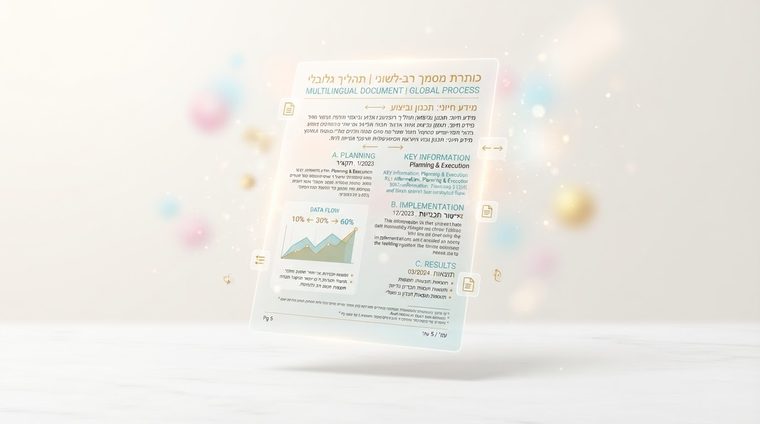
A document that mixes Hebrew and English on the same line — for example, "Order No. PO-48291 received, dated 12.03.2026" — is an accessibility challenge all its own. The writing direction switches several times within a single sentence, and if the tagging isn't precise, a screen reader may read the sequence completely backwards. This article explains how to properly manage multilingual PDF documents (see also our guide on Hebrew and RTL language tagging).
In short — what this article covers
Why Bidirectional Text Breaks Screen Readers
Hebrew is written right-to-left (RTL), while English and numbers are written left-to-right (LTR). When the two are mixed on the same line, the Unicode Bidi algorithm determines the display order — but a screen reader also needs to know which language each segment is in, so it can choose the correct pronunciation. If the document's overall language isn't set, or an English segment inside a Hebrew sentence isn't tagged separately, the screen reader can "stumble" — reading individual letters in reverse order, or pronouncing an English word as if it were Hebrew.
Numbers, Dates, and English Terms Inside a Hebrew Sentence
The good news: in most cases, numbers and short English terms inside a Hebrew sentence (like "PDF," "50%," or a date) sort themselves out correctly on their own — as long as the document's overall language is set to Hebrew (in Word: Review ▸ Language ▸ Set Proofing Language; in Acrobat: Document Properties ▸ Advanced ▸ Reading Options). The Bidi engine handles short sequences like these correctly once it knows the paragraph's base language.
Whole Sections in a Different Language
The problem gets worse when it isn't a short sequence but an entire paragraph, heading, or long quotation in a language different from the document's overall language — for example, a full contract clause in English inside a Hebrew document. In that case, the segment must be tagged separately: in Acrobat's tags tree, select the segment, open its tag Properties, and on the Tag panel choose the specific language for that segment. This lets the screen reader "know" to temporarily switch to the correct accent and reading direction, then return to Hebrew at the end of the segment.
💡 Practical Tip
If the original document is a Word file, try applying the same principle there — select the foreign-language text and change its proofing language specifically (not just the whole document's) — so the correct tagging may carry over automatically when you export to PDF as well.
Checklist for a Multilingual Document
- Overall document language is set: at the document-properties level, not just in the software's display setting.
- Long segments in a different language are tagged separately: not just individual words, but every paragraph, heading, or quotation.
- Correct direction in tables: a table with numeric-data columns next to Hebrew text — check that the column order in the tags matches the visual reading direction.
- Actual testing with a screen reader: the only reliable way to confirm the document truly makes sense is to actually listen to it, not just rely on an automated testing tool.
Have Bilingual Documents You're Not Sure About?
Our tool also checks for correct language tagging as part of the full automatic scan of every PDF file on your site.
Scan your site for free ←After the scan, you can also make the documents it found accessible directly and for free via AccessiDoc.